
Getting Started with PasteQ
PasteQ saves clipboard history and identifies source apps on Mac, helping you find and organize copied content. On iPhone and iPad, you can capture text and links by running a shortcut or view records synced through your personal iCloud account, then use pinned or grouped text with the PasteQ keyboard.
Start by downloading PasteQ from the App Store. The shortcuts below apply to Mac.
Core Mac Workflow
PasteQ is designed to minimize mouse interaction and the need to memorize hotkeys, letting you focus on your current task.
Summoning and Hiding
- Global Hotkey: With PasteQ running, press
Option + c(default) to summon its main window. - Auto-hide: PasteQ automatically hides when you complete an action or switch to another window. You can also press the global hotkey again to hide it.
Tip: You can customize the global hotkey in the app's settings to fit your preferences.
Browsing and Searching
- Arrow Keys: Use
↑and↓to browse through your clipboard history. - Filter by Category:
- Use
Command + ←andCommand + →to select different record categories (e.g., text, images, links).
- Use
- Search: Simply start typing to search your clipboard history in real-time.
- Source Filters: PasteQ identifies source apps for records captured on Mac. Choose a source to narrow your search. Synced records can also be filtered by source on iOS.
Choose a source, then search within its records.
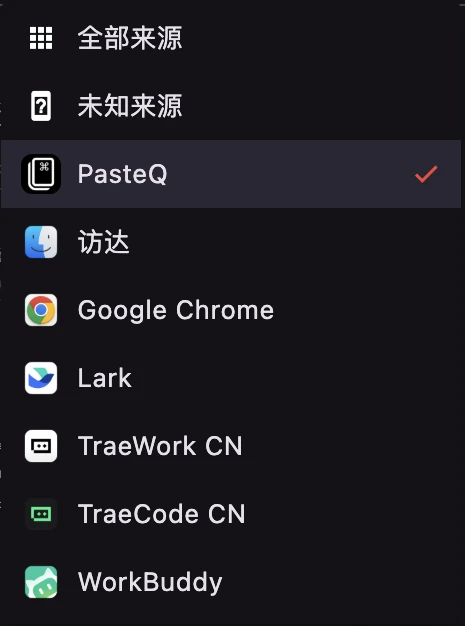
Open the filter beside Search to choose a source.
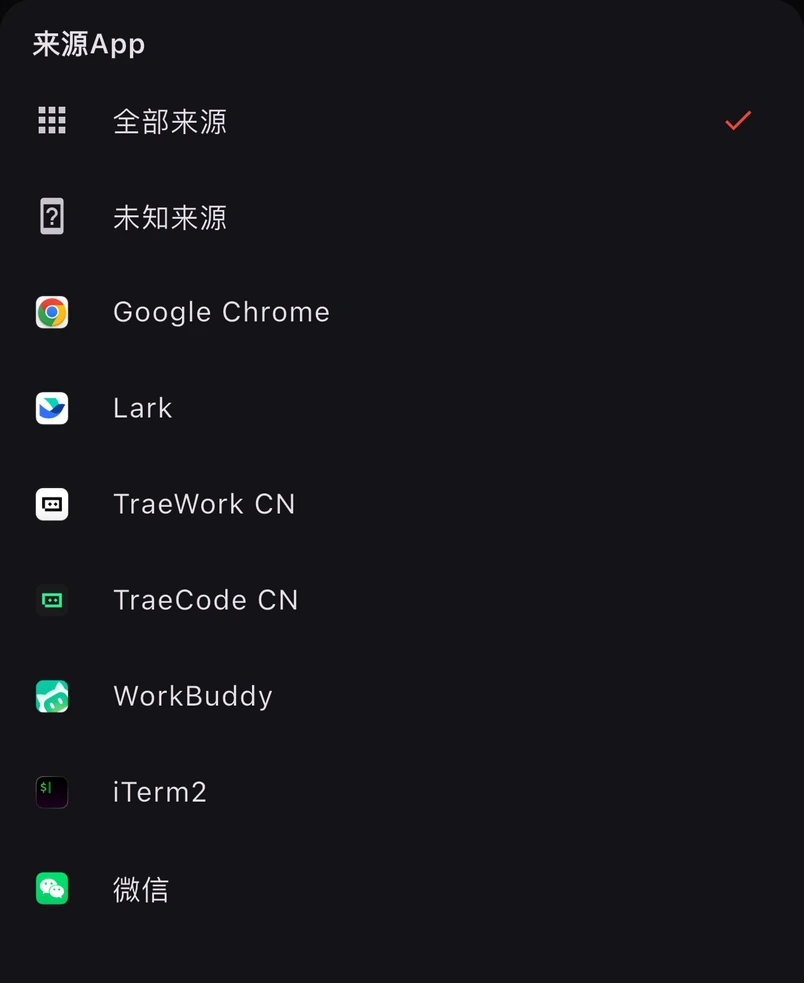
Remember which app you copied from, but not the exact text? Open the source filter, choose that app and search within its records. Source information identified on Mac syncs with the records, so you can also narrow your search by source on iPhone.
Copying and Pasting
- Copy a Record: Select a record and press
Enterto copy it. - Direct Paste: Enable automatic paste in settings and grant macOS Accessibility permission to have PasteQ attempt to paste the selected record into your active input field. See the FAQ if it does not work.
More Operations
Due to space limitations, not all features are listed here.
- Automatic Hotkey Hints: The bottom bar automatically shows the currently available actions and their hotkeys.
- Settings: In the Settings, you can explore more feature toggles.
Managing Your Clipboard
Pinning and Grouping
For frequently used information like code snippets, email addresses, or common phrases, you can pin them for quick access.
- Pin: Select a record and press
Command + Pto pin it to the Pin group. - Group Management: You can also add your own custom-named groups and manage them (create/edit/delete) in the settings.
Reuse Saved Text on iPhone
Capture on Your Phone and Reuse from the Keyboard
Follow the Back Tap capture guide to add the PasteQ shortcut, assign it to Back Tap on a compatible iPhone and add the PasteQ keyboard. Keep automatic pinning enabled (the default), copy text or a link and trigger Back Tap to capture it. Then insert items one by one from Pinned in the keyboard, without opening the main app first.
Quick Capture requires iOS 16 / iPadOS 16 or later. On iPad, run the shortcut directly. You trigger capture for each item you want to keep.
Sync Saved Text from Mac
- On Mac, pin a common reply, email address or other text, or add it to a custom group.
- Follow the multi-device sync guide, then open PasteQ on your iPhone and confirm that the record has synced.
- Follow the iPhone keyboard setup guide, switch to PasteQ in an input field that supports third-party keyboards, and tap the text to insert it.
iOS does not continuously capture clipboard history from other apps in the background. You can run the shortcut to capture an item, or view synced records in PasteQ and manually add, edit and organize content.
Data and Sync
iCloud sync is optional and uses your personal iCloud account. Sync requires a network connection, and its timing depends on iCloud availability and whether the app is running. The PasteQ keyboard does not require Allow Full Access. It inserts available pinned and grouped text; images, files and encrypted records are not available for direct keyboard insertion.