
Find your Mac clipboard history
Keep copied text, images and links. Open the floating window and search by keyword when you need something again, without retracing chats or web pages.
Find Mac clipboard history by source. On iPhone, copy text, capture it with Back Tap, and reuse it with the PasteQ keyboard. Sync your devices with iCloud.
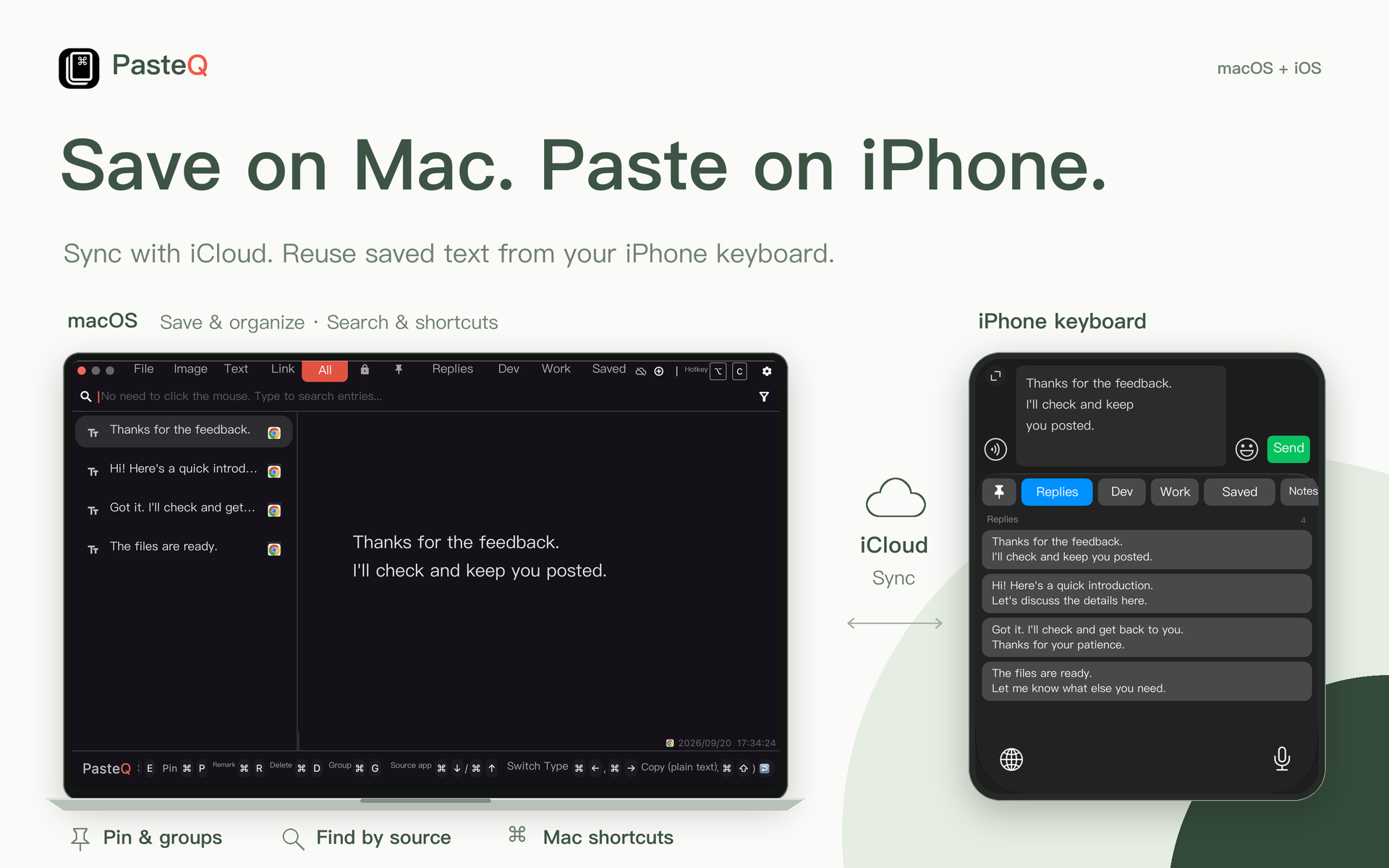

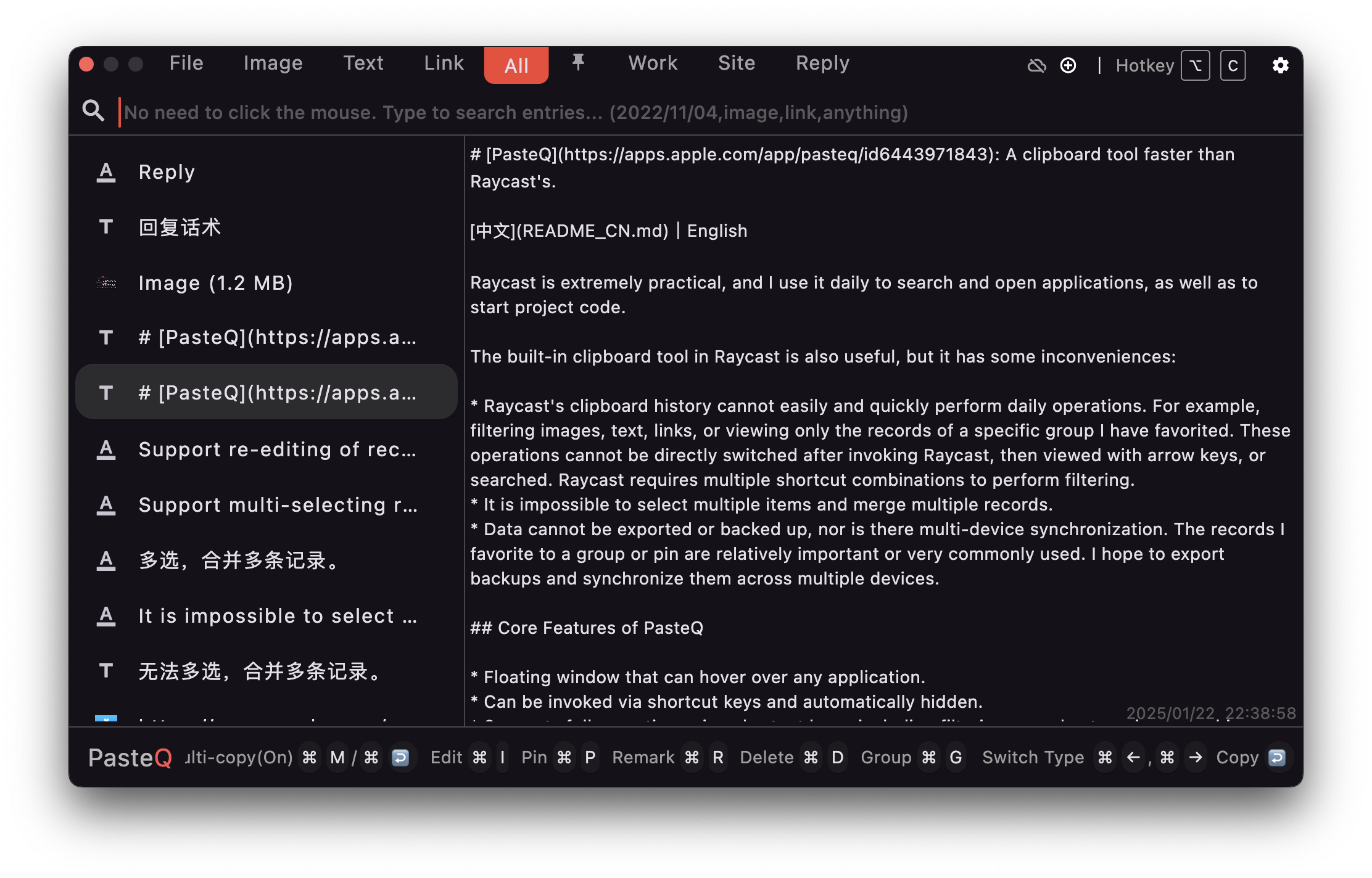
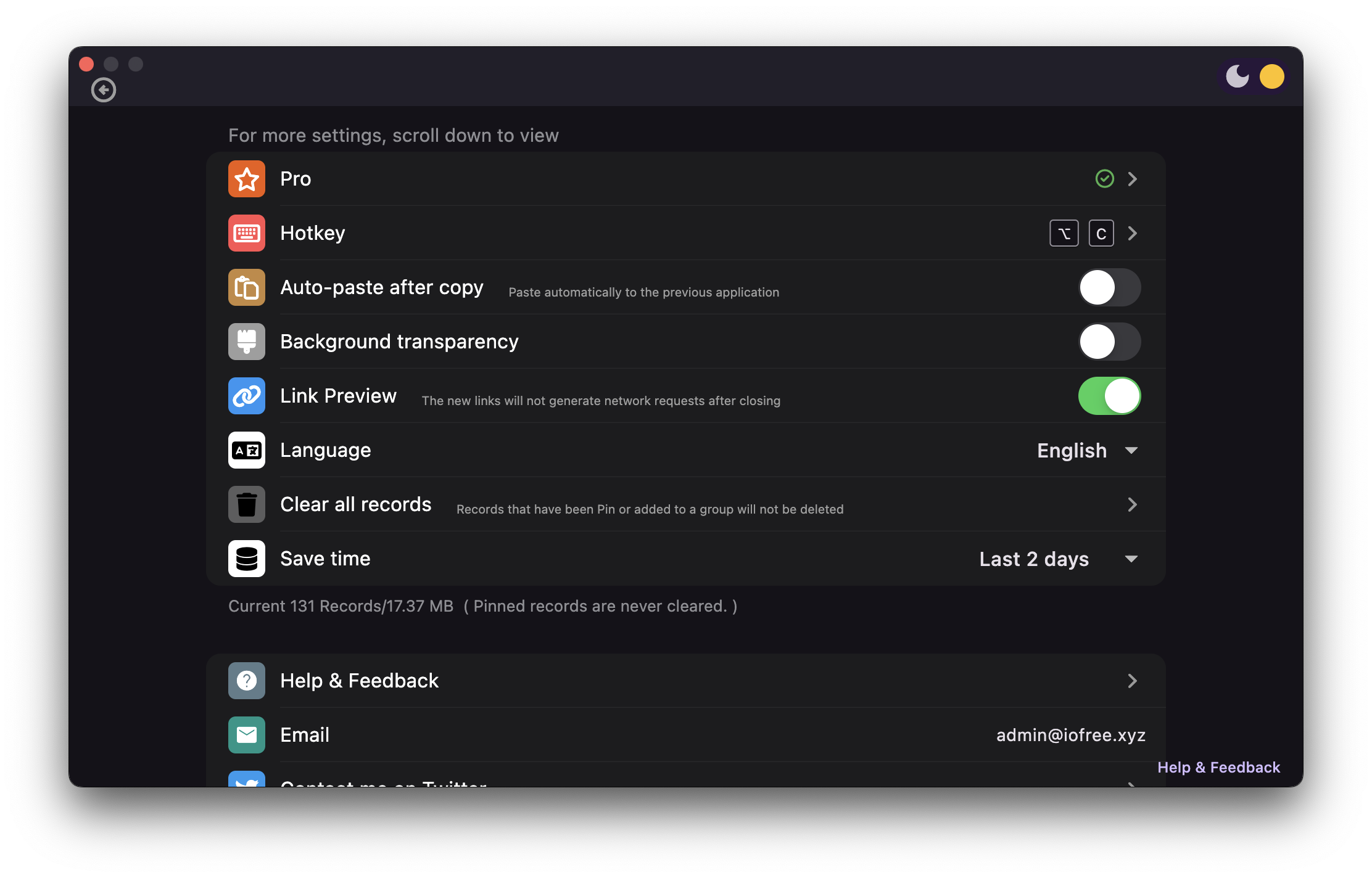
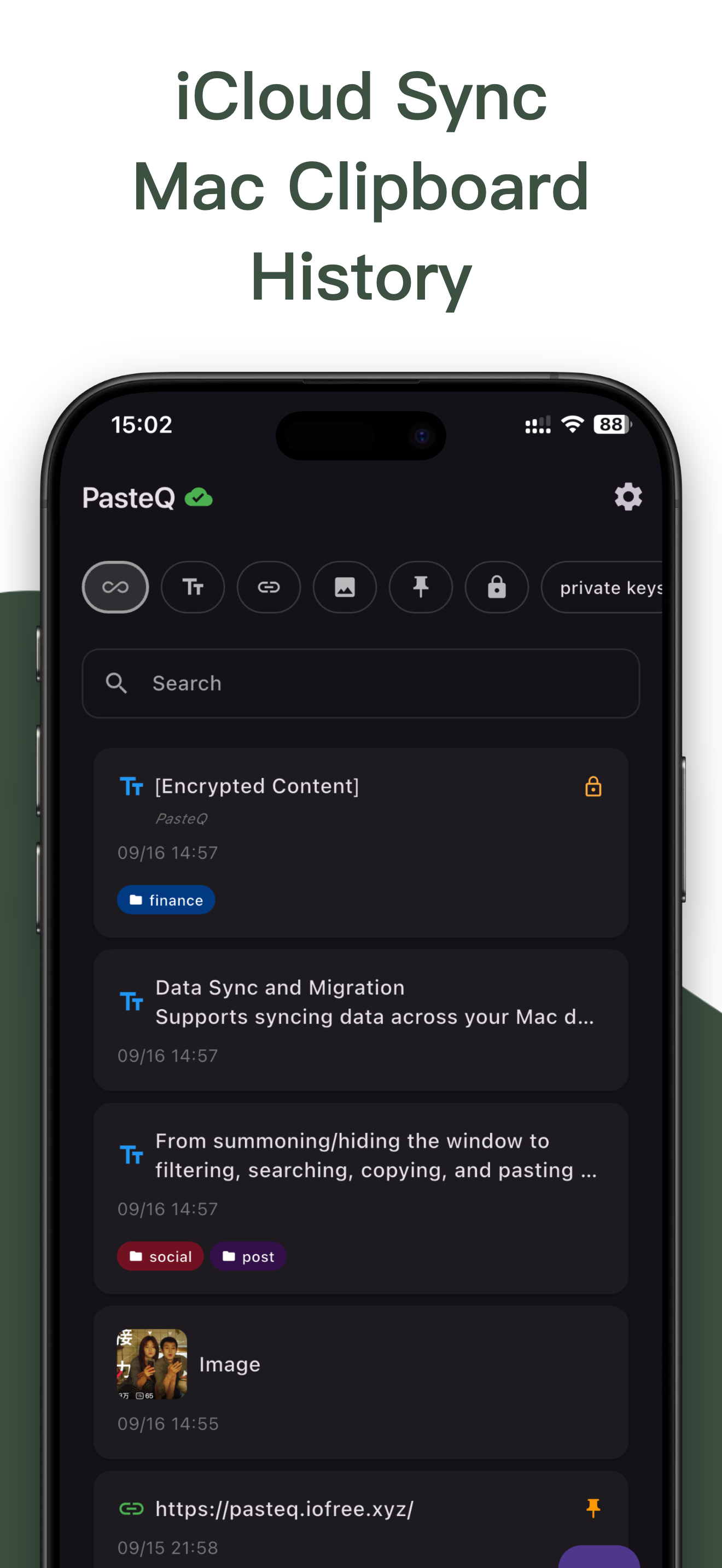
An outline for your next draft, a short bio for a new post, or a portfolio link for a collaboration reply. Set up the PasteQ shortcut and keyboard, copy text or a link, then trigger Back Tap to capture that item. Open the PasteQ keyboard and pick items from Pinned to insert them one by one, without opening the main app first.
An address, a reply, a link.

Run your configured shortcut.

Insert it with the PasteQ keyboard. Reuse it next time.
Quick capture requires iOS 16+. Back Tap needs a compatible iPhone; on iPadOS 16+, run the shortcut directly. The keyboard works in fields that support third-party keyboards.
Set up Back Tap and quick capture → · Explore the PasteQ keyboard
Looking for a link copied in your browser, or text saved from a work app? PasteQ identifies source apps on Mac. Choose a source, then search by keyword to narrow down your clipboard history. Records synced to iPhone through iCloud can also be filtered by source.
Choose a source, then search within its records.
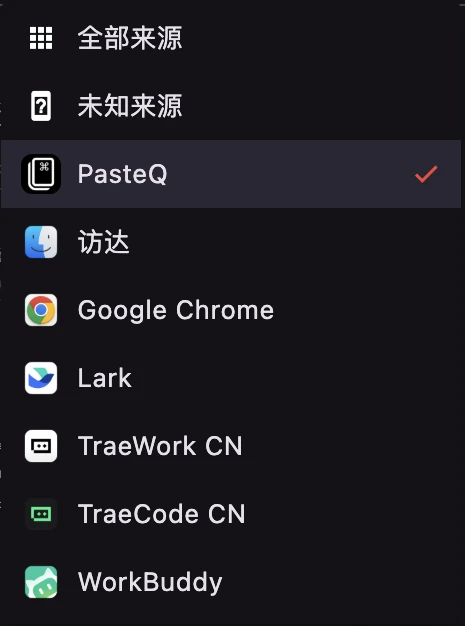
Open the filter beside Search to choose a source.
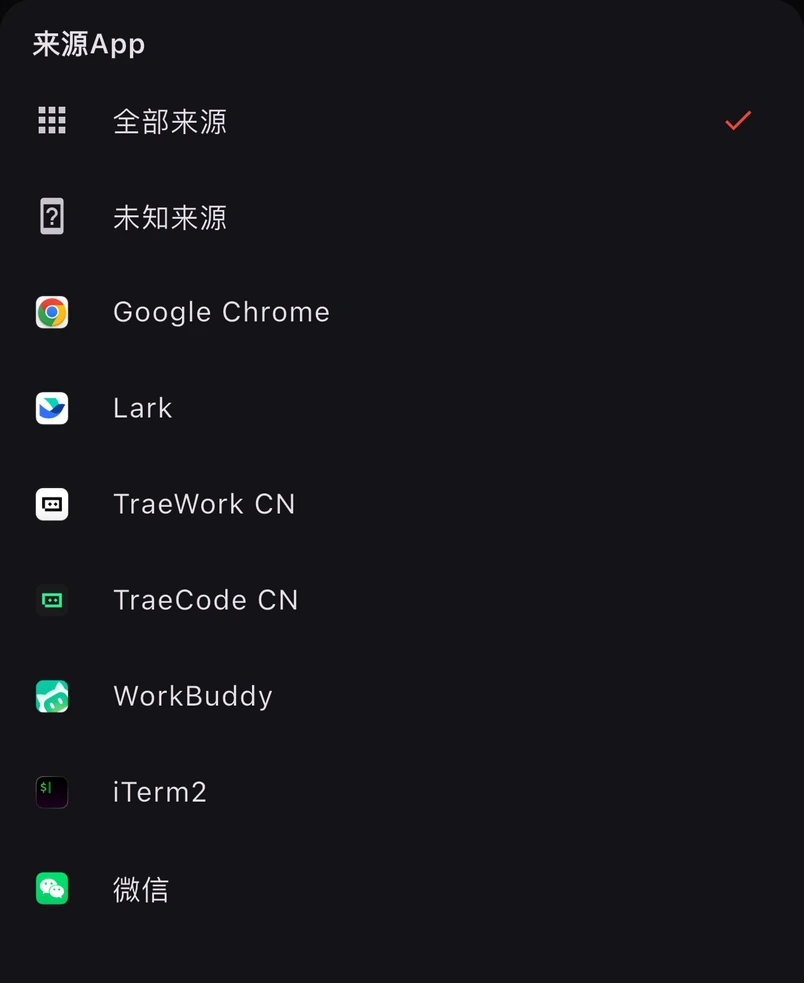
Learn how source filters work on Mac and iPhone →
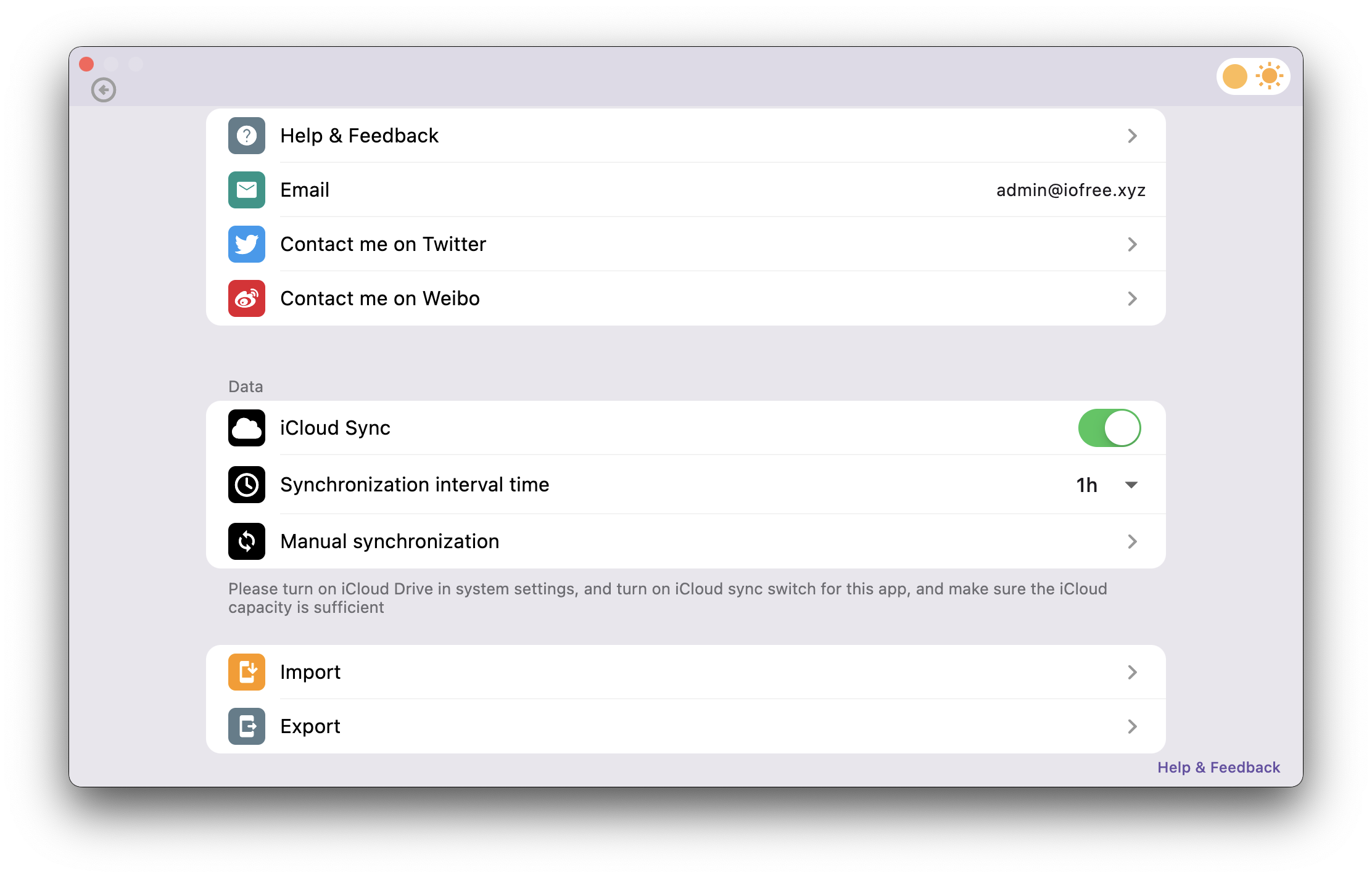
Apple's Universal Clipboard helps you transfer something you just copied to another device. PasteQ focuses on searching history, filtering by source and organizing reusable content so you can find saved items later. Learn about multi-device sync.
No. On iPhone, each text item or link is captured when you run the shortcut or trigger Back Tap. Copying alone does not start continuous background recording. Keep automatic pinning enabled (the default) to reuse captured items from Pinned in the PasteQ keyboard. See setup and requirements.
PasteQ stores data on your device. When you enable iCloud sync, data also syncs through your personal iCloud account. Sync needs a network connection and the relevant system settings. See the privacy policy for the terms.
Most features are free. Some advanced features are paid.
Download PasteQ for free → · Getting started · More questions