Copy Text. Back Tap. Reuse on iPhone.
Copy text or a link, then tap the back of your iPhone to capture that item in PasteQ. Once the shortcut and keyboard are set up, keep automatic pinning enabled (the default) to insert items one by one from Pinned in the PasteQ keyboard, without opening the main app first.
An address, a reply, a link.

Run your configured shortcut.
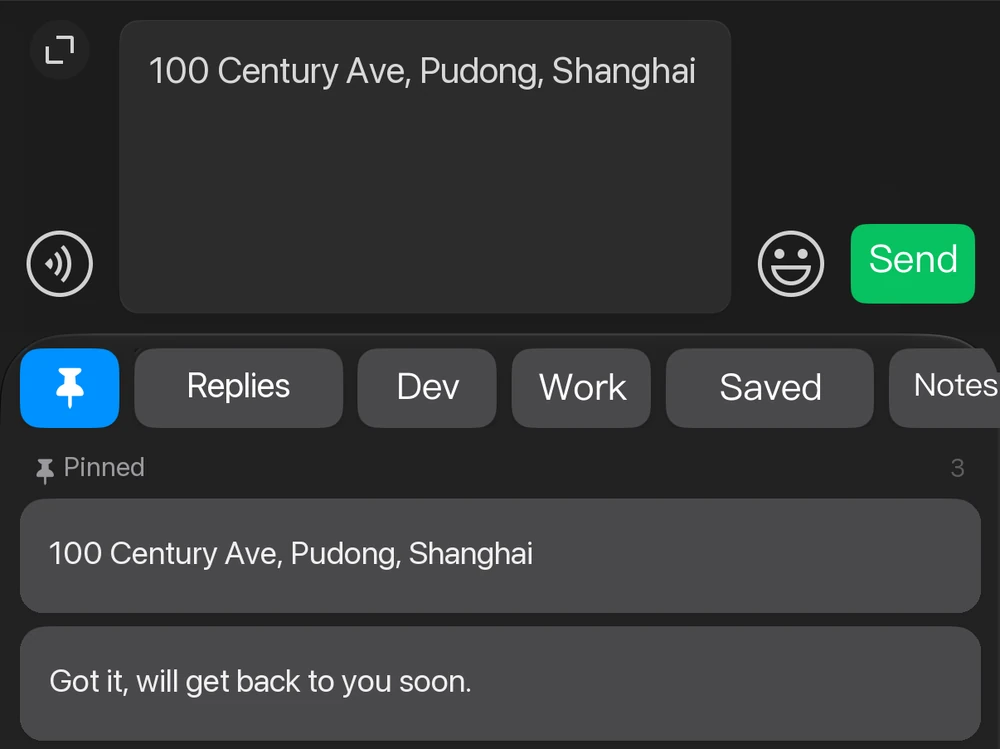
Insert it with the PasteQ keyboard. Reuse it next time.
Save an outline for your next draft, a short bio for a new post or a portfolio link for a collaboration reply. Collect a few short passages, choose what fits the current draft and edit after inserting. The same text is ready to reuse the next time you write.
Need the app? Download PasteQ from the App Store. Quick Capture requires iOS 16 / iPadOS 16 or later. Back Tap requires a compatible iPhone; on iPad, run the shortcut directly to capture an item.
First-Time Setup: Four Steps
1. Add the PasteQ Shortcut
In PasteQ, open Settings → Quick Capture and use the option to add the shortcut. Keep automatic pinning enabled, as it is by default. You can also create a shortcut in the Shortcuts app with two actions in order: Get Clipboard → Save to PasteQ.
2. Assign the Shortcut to Back Tap
On iPhone, open Settings → Accessibility → Touch → Back Tap. Choose Double Tap or Triple Tap and assign the PasteQ shortcut you just added. Menu labels may vary by system version.
3. Add the PasteQ Keyboard
Open Settings → General → Keyboard → Keyboards → Add New Keyboard and select PasteQ. You do not need to enable Allow Full Access. See the iPhone keyboard guide for details.
4. Try a Short Text Snippet
Copy text or a link → trigger Back Tap to capture it → switch to the PasteQ keyboard in a field that supports third-party keyboards → open Pinned and tap an item to insert it. You can collect several items, then choose them one by one as you write.
For each new item you want to keep, copy it and trigger Back Tap again. Capturing and using those items in the keyboard does not require opening the main app first. You choose what to insert, then edit, publish or send it yourself.
Automatic Pinning and Keyboard Access
Automatic pinning is enabled by default, making captured text available in Pinned in the keyboard. If you turn it off, you can still capture items, but they will not automatically appear in Pinned. Open the main app to pin them manually or add them to a group enabled for the keyboard.
The PasteQ keyboard works in fields that support third-party keyboards and is useful for short text such as bios, hashtags, reference links and common replies. Images, files and encrypted records are not available for keyboard insertion. Use the main app for complete long-form text and further record management. See the iPhone keyboard guide for display limits and troubleshooting.
You Trigger Each Capture
Quick Capture reads and saves the current text or link when you run the shortcut or trigger Back Tap. Copying alone does not start continuous background capture, and this workflow does not save all clipboard history from other apps on iOS.
On an iPad running iPadOS 16 or later, copy an item and run the same shortcut directly. The Back Tap setup step applies only to compatible iPhones.
Continue on Mac
After capturing on your phone, open the main PasteQ app to add those items to your library. Enable iCloud sync on devices using the same Apple Account. Once syncing has completed, you can find, organize and reuse those records on Mac.
Sync timing depends on your network, iCloud and whether the app is running. See the multi-device sync guide for setup, or Getting Started for clipboard history search and source filters on Mac.