PasteQ vs Tinycast: Choose the Scope You Need
Tinycast is a free, open-source native Mac launcher with clipboard history, Snippets, Notes, AI, window management and Raycast extension support. Its official launcher documentation also describes Latin transliteration and initials for Chinese app names.
PasteQ takes a minimal, deliberate approach: find copied content, reuse saved text and open Mac apps, with the essentials for everyday use. Its app launcher is Mac-only and off by default, ready to enable when needed. Source filters, editing, groups, personal iCloud sync and the iPhone keyboard all serve the task of using copied content again.
Checked on 2026-11-24 using the official sources below. An unlisted feature is not treated as proof that Tinycast lacks it.
Compare the Scope, Then the Steps
| Decision | Tinycast | PasteQ |
|---|---|---|
| App launching and Chinese names | A native Mac launcher with documented localized names, Latin spellings and initials | Mac-only and off by default; supports Chinese and English names, pinyin, pinyin initials and English word initials when enabled |
| Mac clipboard tools | Local history, type filters, pinned entries and text editing | History search, source app filters, record editing, Pin and custom groups |
| Feature scope | Optional AI, Notes, Snippets, window management and extensions | Focused clipboard and text reuse tools, with a Mac app launcher you enable when needed |
| Moving from Raycast | Official Raycast extension support and a .rayconfig import guide, with documented limits | No promise of Raycast extension compatibility or settings and history import |
| Where you use records | The official clipboard guide describes local Mac history storage | Local use, or optional personal iCloud sync to view and organize records on Mac, iPhone and iPad |
| Availability | Described as free and open source, with code on GitHub | Available on the App Store; most features are free and some advanced features are paid |
Tinycast can already edit and pin clipboard entries. First decide how much you want one tool to cover, then compare the steps for organizing and reusing content. PasteQ's focused scope suits people who want a few essential tasks, with phone text reuse as one workflow to test for yourself.
Test App Search with Your Own Names
PasteQ's app launcher is off by default. On Mac, enable Settings → App Launcher and press Option + Space, the configurable default shortcut. Pick an installed app with a Chinese name and try its name, pinyin and pinyin initials. Then try an app with a multiword English name using both its name and word initials.
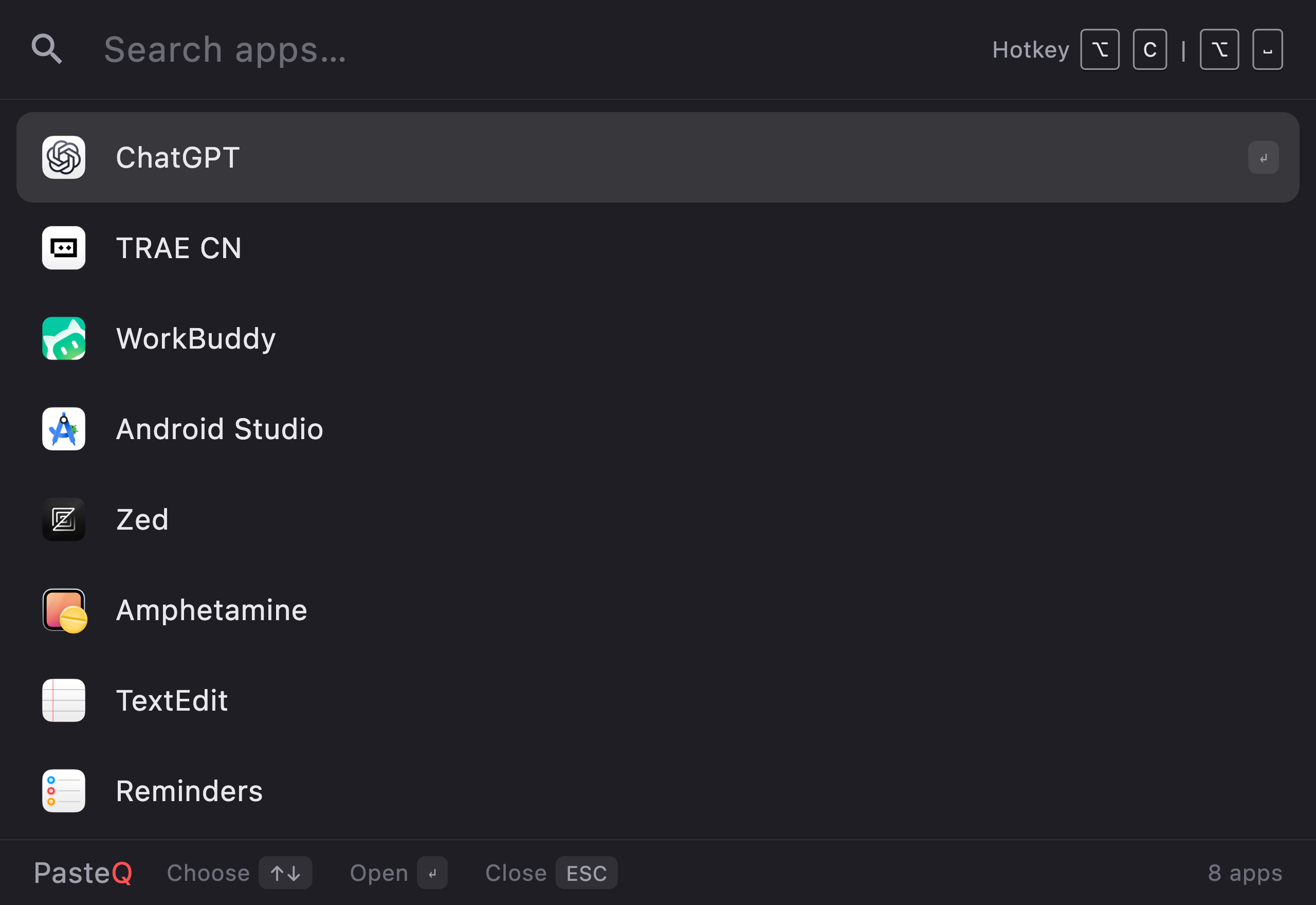
Test the same apps in Tinycast. Whether the results are recognizable and your usual queries find the intended app is more useful than a general speed claim. Follow the PasteQ app launcher guide for setup. The Mac clipboard window has a separate default shortcut, Option + C. Give the launchers different shortcuts if you run both.
When Your Replies Also Need to Work on iPhone
If you prepare replies and resource links on Mac but often use them on your phone, try this PasteQ workflow:
- Filter Mac clipboard history by source, find the text, edit it and save it in Pin or a group for its purpose.
- Enable iCloud sync across devices, then open PasteQ on an iPhone using the same Apple Account and check that the text has arrived.
- Add the PasteQ keyboard and tap available text from Pin or enabled groups in a field that supports third-party keyboards.
The keyboard does not require Allow Full Access, but it does not independently sync new Mac records. The iPhone main app must update the local content first. Network conditions, iCloud and app activity affect sync timing. Images, files and encrypted records cannot be inserted from the keyboard.
Capture on Your Phone Without Going Through Mac
Set up Back Tap and the PasteQ shortcut. Copy text or a link and trigger capture for each item you want to keep. Leave automatic pinning enabled, its default setting, to use captured text from Pinned in the keyboard without opening the main app first. To sync those items back to Mac, open the phone's main app so they enter its record library and sync.
This is user-triggered capture, not continuous background clipboard recording on iOS. Back Tap needs a compatible iPhone; on iPad, run the shortcut directly. PasteQ supports Mac, iPhone and iPad, while its app launcher is Mac only.
When Tinycast Is the Better Fit
- You want to inspect or build an open-source launcher. Tinycast publishes its source, a concrete reason to choose it.
- You want several Mac tools in one palette. Try its Notes, window management, AI or Snippets by enabling the features you need.
- You are moving an existing Raycast setup. Tinycast documents an import path, but check export versions and extension support, then test your important commands individually.
For a local Mac toolbox, Tinycast is a sensible first trial. If you prefer a simpler tool centered on clipboard history and saved text, with an app launcher you enable as needed, try PasteQ. Test the Mac-to-iPhone path too if you need mobile text reuse. Tinycast's Raycast import support is not a PasteQ migration feature.
Official Sources
- Tinycast website — native design, free and open-source status, features
- Tinycast app launcher — name matching and Chinese transliteration
- Tinycast clipboard guide — local storage, pinning and editing
- Tinycast extension support and Raycast import requirements
- Tinycast source code on GitHub
Considering Raycast too? Read PasteQ vs Raycast, or plan your trial with the Raycast vs Tinycast vs PasteQ guide.
Download PasteQ for free from the App Store → Most features are free; some advanced features are paid.